Multi-Device Support: Using WhatsApp on Multiple Devices Simultaneously
Anúncios
You rely on WhatsApp for work and life, yet one-phone limits can cause delays and missed replies.
With multi-device support, you can keep chats moving from your phone, laptop, tablet, or browser.
This shift improves cross-device compatibility, so your messages stay available without constant switching or risky workarounds.
It also strengthens universal device compatibility, letting you stay responsive while keeping privacy and security standards intact.
Anúncios
For years, WhatsApp felt tethered to one main phone, which made everyday communication harder than it needed to be.
If you carried a personal phone and a work phone, you probably chose one device to check more often.
That split can slow decisions, stretch response times, and create a steady stream of small interruptions.
WhatsApp’s multi-device support is built to remove that friction without changing how you use the app.
You can sign in on your primary phone and link up to four additional devices, including WhatsApp Web and desktop apps.
WhatsApp also expanded cross-device compatibility to cover more real-world setups, including using the same account on multiple phones.
That matters if you move between iPhone and Android, or if you keep a second phone for travel or work.
In practice, universal device compatibility means you can reply where you are, not where your main phone happens to be.
There’s still a clear ownership model: your primary phone remains the anchor for your account and device links.
What WhatsApp Multi-Device Really Means for Cross-Device Compatibility
WhatsApp used to be tied to your phone only. If your phone’s battery died, you couldn’t use it on your desktop. Now, with multi-device support, your account works across many screens. This means you can switch from using a laptop to a tablet to a second phone easily.
This change helps devices work better together, no matter the brand. Your devices now do more than just show your messages. They can send messages and stay active, even if your main phone isn’t working. This is a huge leap toward making all devices work well together every day.
Old Way vs New Way: Key Differences (Quick Comparison)
| What you notice | Old experience (phone-centered) | New experience (multi-device) |
|---|---|---|
| Connection reliability | Desktop and web would often lose connection if your phone’s battery was low, the signal was weak, or there were other limits. | Even if your phone is offline, linked devices can keep working. This improves how well devices work together. |
| How devices behave | The apps on other devices just mirrored your phone. | Now, each device works independently. This makes devices work better no matter the brand. |
| Using multiple devices at once | It was hard to switch between devices, and you could usually only use one at a time. | You can now use your phone and up to four other devices at the same time. This makes it easier to work and use devices at home. |
| Performance under strain | Your phone did most of the work, so any slow down on your phone affected other devices. | WhatsApp now shares the workload across all linked devices. This keeps your messages safe and private. |
What “Independent Connections” Changes for Universal Device Compatibility
Independent connections let each device connect to WhatsApp on its own. This means your laptop or second phone can send and receive messages directly. It’s not just showing what’s on your phone anymore.
This setup reduces delays when switching between devices. It helps devices work better together, even when using different networks or apps. Your devices aren’t limited by the type of hardware anymore.
What Still Requires Your Primary Phone (Account Ownership and Control)
Your main phone is still key for controlling your account. Adding a new device starts with your phone, often using a QR code. You also manage your devices from your phone.
This system makes using multiple devices easy but keeps you in control. It ensures that using many devices feels secure.
Requirements and Prep for Seamless Device Integration
Before linking extra devices, make sure your basics are set. Just a few minutes of setup can make adding devices smooth and worry-free.
Your goal is to ensure easy access, install everything neatly, and choose devices that match your workflow. Achieving this allows for usage across multiple platforms and more flexibility with your devices.
Internet Access on Your Secondary Device (Wi‑Fi, LTE, or 5G)
Your secondary device must have its own internet connection. Prefer Wi‑Fi for stability, but LTE or 5G works well when moving around.
A weak signal can delay syncing and late messages. For smooth integration, aim for a constant network connection and prevent battery saver from limiting data use.
Installing WhatsApp on the Additional Device
Get WhatsApp installed on your extra device before linking it. This goes for phones, tablets, and computers using the Windows or macOS app, or WhatsApp Web.
Linking typically involves scanning a QR code from your main phone. WhatsApp is also introducing a method for WhatsApp Web that uses a phone number to request a code, which you then confirm.
This method allows you to stay connected across multiple platforms without needing to keep one device active all the time. It also makes it easier to switch between devices, enhancing your flexibility.
Planning Your Device Mix for Multi-Platform Accessibility (iPhone, Android, Desktop, Web)
Choose your devices based on your writing habits and quick response needs. Many opt for an iPhone for personal use, an Android for work, and WhatsApp Web or desktop for faster messaging.
WhatsApp allows linking up to four extra devices, including phones. This flexibility supports using different devices at work, while travelling, or with a backup phone.
| Device option | Best use case | What to prep |
|---|---|---|
| Second phone (iPhone or Android) | Work/personal split and quick replies when your main phone is charging | Own Wi‑Fi/LTE/5G access, WhatsApp installed, notifications enabled for timely sync |
| WhatsApp Desktop (Windows or macOS) | Faster typing, file sharing from your computer, long chat sessions | Install the app, allow system notifications, keep your OS updated for stability |
| WhatsApp Web (Chrome, Safari, Edge, Firefox) | Quick access on shared or temporary machines | Use QR linking or the one-time code method when available; log out when done |
Planning your device setup ahead of time makes integrating them effortlessly. It also enhances your device use without changing your communication habits.
Workflow: How to Use WhatsApp on Multiple Devices Simultaneously
Multi-device support lets you keep your WhatsApp active on more devices at once. No need to switch phones or log out to reply quickly. It just takes a moment to set up, offering smooth integration across your devices.
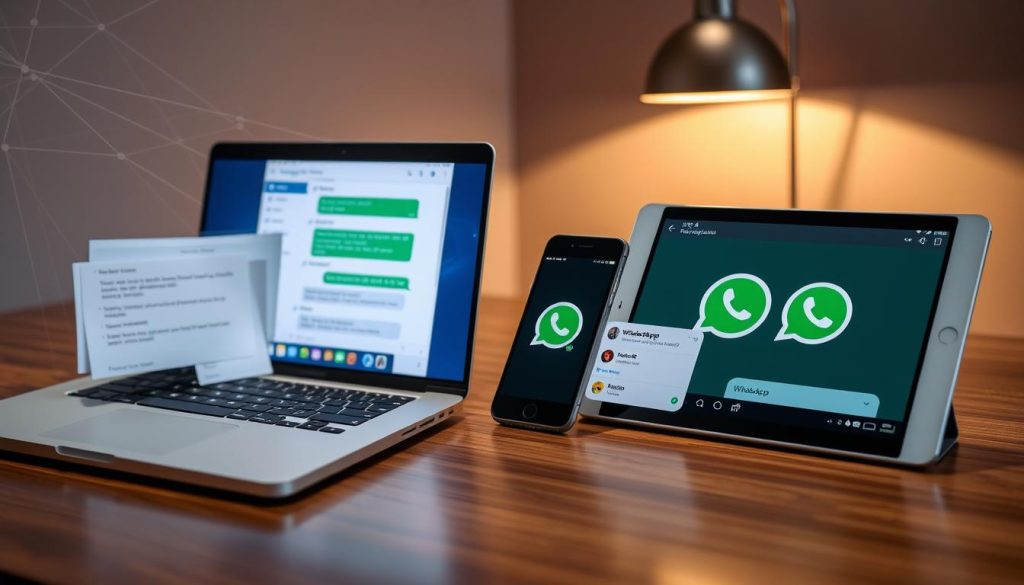
Open WhatsApp on your main phone.
For Android, hit the three vertical dots at the top-right. For iPhone, go to Settings at the bottom-right.
Click Linked Devices to see your connected devices and any active WhatsApp Web sessions.
Choose Link a device. Your main phone will ask to continue and might need your Face ID, Touch ID, or passcode.
On your other phone, open WhatsApp and pick the option to link as a companion device. Then, scan the QR code from your main phone.
Wait for the chat sync to finish. After that, you can use both phones for your chats without logging out.
Once linked, your messages and media start to sync behind the scenes. To keep things running smoothly, both devices should be online. If the second phone is offline too long, it might not get updates until it’s back online and can sync.
You can also connect WhatsApp Web in the Linked Devices section. Sometimes, you might see a phone-number option with a one-time code for linking, especially useful when you can’t use the camera for QR scanning.
| Step | Where you do it | What you’ll see | Why it matters for multi-device support |
|---|---|---|---|
| Open menu | Primary phone (Android menu or iPhone Settings) | Account tools and device controls | Keeps pairing under your control and tied to your account |
| Go to Linked Devices | Primary phone | List of connected sessions and last active times | Helps you manage interoperable device solutions without guessing what’s connected |
| Link a device | Primary phone | QR code prompt, sometimes biometric check | Adds a safety step so a nearby device can’t pair without you |
| Scan and pair | Secondary phone | Camera scan and pairing confirmation | Starts seamless device integration so you can reply from either phone |
| Initial sync | Secondary phone | Sync progress while chats load | Sets you up to continue threads across devices with fewer interruptions |
Key Options for Flexible Device Support (Comparison Table)
When you turn on WhatsApp multi-device, your chats stay close on all your devices. Your account can be active on a phone and up to four other devices. This means you’re not stuck using just one screen.
This setup lets you use many platforms smoothly. You can switch between desktop, browser, and other devices throughout the day. This reduces hassle and lets you work more freely, without needing one main screen.
| Option | Best for | What you can do well | Practical limits to plan for |
|---|---|---|---|
| WhatsApp Desktop (Windows or macOS) | Long work sessions at a keyboard | Type faster, search chats quickly, drag files from your computer, and keep messages visible while you work | Notifications depend on your computer settings; some calls and device features can vary by OS version |
| WhatsApp Web (Chrome, Safari, Edge, Firefox) | Quick access on shared or secondary computers | Reply fast without installing apps, scan and link in seconds, and stay productive in a browser tab | Works best with a stable connection; you should log out on public machines to protect your account |
| Linked phone (companion device) | Carrying a backup or work phone | Keep chats flowing even when you switch devices, handle messages on the go, and maintain flexible device support across your daily routine | Not every phone model supports the same companion experience; storage and battery limits can affect performance |
| Tablet (where supported by the WhatsApp app) | Reading and replying on a bigger screen | Review threads with less scrolling, handle media comfortably, and improve multi-platform accessibility at home or in meetings | App availability and features can differ by platform; camera and mic behavior varies by device |
With linked devices connecting directly, you can quickly respond without relying on your phone alone. You pick the screen that suits the moment. Your messages keep pace with you.
Security and Privacy: End-to-End Encryption with Device-Agnostic Functionality
Using WhatsApp on different screens doesn’t make your chats less private. With multi-device support, each device connects separately. Yet, your messages, media, and calls are all kept end-to-end encrypted.
This is crucial when you move between phones, a laptop, and a tablet. You enjoy device-agnostic functionality without extra cloud reliance.
How WhatsApp Maintains End-to-End Encryption Across Multiple Devices
In one-on-one chats, WhatsApp creates encrypted links between specific devices, not just people. When you send a message, your app encrypts a copy for each device, using a technique known as client-fanout.
WhatsApp doesn’t store messages on its servers after they’re delivered. In group chats, it employs the Sender Key scheme for scalable encryption. This keeps things quick and secure.
For voice and video calls, WhatsApp uses SRTP with unique 32-byte secrets for each device. These secrets are only kept during the call, away from WhatsApp servers.
Device Identity Keys and Device Lists: What Changes Under the Hood
Before, your WhatsApp account was linked to a single identity key. Now, every device you use has its own key. WhatsApp also keeps a list of devices tied to your account.
This update means WhatsApp can send the right keys for your active devices to your contacts. This change smoothens the use across different devices like Android, iPhones, and computers without compromising encryption.
Security Codes and Automatic Device Verification (Reducing Re-Verification)
Security codes now reflect all the devices linked to an account. Comparing codes with a contact verifies all possible message receivers.
WhatsApp introduced Automatic Device Verification to reduce manual checks. Now, you’ll seldom need to compare codes, mostly just after re-registering your account.
Remote Control: Viewing Linked Devices, Last Used, and Logging Out
You can check your devices, see their last active time, and log out if needed. Linking a new device through QR code might require biometric ID from your phone.
This multi-device support mixes flexibility with control. It ensures seamless use across your devices while keeping day-to-day management in your hands.
| Security feature | What you see in WhatsApp | What happens behind the scenes | Why it matters for multi-device support |
|---|---|---|---|
| End-to-end encryption on chats | Messages and media send as usual across devices | Pairwise encrypted sessions per device with client-fanout delivery | Each device gets only its own encrypted copy, supporting device-agnostic functionality |
| Group chat protection | Large groups stay responsive | Sender Key scheme from the Signal Protocol for scalable encryption | Encryption stays strong without slowing interoperable device solutions |
| Device identity keys | Linked devices appear under your account | Each device has a distinct identity key; server maps account to device list | Limits blast radius if one device is lost and improves isolation across platforms |
| Security codes | You can verify a chat with a contact | Code represents the combined set of device identities | Helps detect unexpected devices receiving messages |
| Automatic Device Verification | Fewer prompts to re-check codes | Verification reduces the need for repeated manual comparisons | Keeps setup smooth as you add devices, without skipping safeguards |
| Linked device controls | View devices, last used, and log out remotely | Companion sessions can be invalidated from your account settings | Fast response if a laptop is shared or a tablet is misplaced |
| Encrypted calling (voice/video) | Calls work across devices with normal controls | SRTP with random 32-byte master secrets per recipient device, stored only in memory | Private calling stays consistent while switching devices mid-day |
Sync and Reliability: Adaptive Device Responsiveness in Real Use
Using WhatsApp on multiple devices can show sync problems quickly. The aim is to deliver messages smoothly, without the delay old methods had. Adaptive device responsiveness helps with using different devices together, even if the internet is bad on one.

This reliability makes using your devices together feel easy. Your messages don’t get stuck waiting due to a weak link between phones. Each device is ready to receive messages without delay.
How Message History Sync Works When You Link a New Device
Linking a new device makes your main phone send a secure package of your recent messages. This package is safely encrypted before it’s sent, and only the new device can unlock it with a special key.
Once the new device gets and unlocks the package, it keeps the messages for itself. After moving the messages, it forgets the transfer keys. This lets the new device access messages directly, making sharing between devices quick and steady.
Ongoing State Sync (Contacts, Archived Chats, Starred Messages)
There’s more to matching up than just messages. WhatsApp also syncs things like your contacts, saved chats, and important settings. So if you mute a chat or star a message on one device, you’ll see it on all others.
To keep everything in line, WhatsApp stores a secure copy of your app info on its servers. This info, along with key details, is well-protected. This method allows for updates in small, secure pieces, helping devices work well together.
| What needs to sync | What you’ll notice when it works well | What can delay it |
|---|---|---|
| Recent message history during linking | Your newest chats appear quickly on the new device, supporting cross-device compatibility | Slow Wi‑Fi, low storage, or background limits during the first download |
| Contact names and chat list labels | Names look consistent across phone, desktop, and web for seamless device integration | Large address book changes or restricted permissions on a device |
| Archived chats and pinned threads | Your inbox stays organized the same way, improving adaptive device responsiveness in daily use | Device offline time or delayed state updates after reconnect |
| Starred messages and message actions | Saved references show up where you need them, keeping cross-device compatibility practical | Intermittent network or a backlog of pending sync operations |
Common Sync Gaps When a Companion Phone Loses Internet
If a companion phone loses its internet, it might not keep up. If you continue chatting on your main phone, the other phone might display messages late, miss new ones, or update chats slowly.
In actual use, how quickly a device recovers is key. A good reconnection and allowing the device to work in the background helps it catch up. This is what makes using devices together smoothly work well, showing how valuable it is.
Efficiency and Productivity Gains with Enhanced Device Versatility
When chats come in quickly, you need to manage them without delay. With WhatsApp multi-device, you gain the flexibility to switch effortlessly between a phone, laptop, and more. This keeps your work flowing smoothly.
This feature is designed for real-world flexibility. You can respond from anywhere, continue the same discussions, and avoid slowdowns from switching apps.
Capacity and Scale
Use one WhatsApp account on your main phone and up to four other devices. This is helpful for calls, travel, or alternating between the desk and other work areas.
Now, you don’t have to choose a single device to stay active on. You can remain logged in across a few endpoints. This allows for quick responses from the closest device.
Fewer Dropouts
Your connected devices don’t depend on your main phone. If your main phone’s service is weak or its battery dies, the other devices keep working. This keeps your pace uninterrupted.
This dependability ensures your device flexibility stays strong even during busy times. It’s practical, as you won’t waste time reloading and can focus on replying to messages.
Customer Replies at Team Speed
For WhatsApp Business users, linking additional devices lets many employees respond from their phones. This maintains a unified account while avoiding delays from passing the phone around.
This setup helps your team adapt during busy times. You can divide tasks based on the message’s type, urgency, or shift without making customers wait.
| Scenario | What you do with multi-device | Efficiency gain you feel | Where flexible device support matters most |
|---|---|---|---|
| High-volume chat bursts | Reply from desktop while your phone handles calls | Less context switching and faster triage | Keyboard speed and stable sessions |
| Travel days | Keep a tablet or laptop linked while your phone changes networks | Fewer stalled replies during transit | Adaptive device responsiveness across Wi‑Fi and cellular |
| In-store or on-site service | Link a second phone for quick responses near customers | Shorter wait times and fewer missed pings | Enhanced device versatility when you’re away from your desk |
| Small business coverage | Allow multiple employees to answer from companion phones | Better coverage during breaks, shifts, and rush hours | Flexible device support without constant device handoffs |
Troubleshooting and Ongoing Management for Interoperable Device Solutions
Think of multi-device chat as a small system, not just a one-time setup. Interoperable device solutions offer flexibility. But you need quick checks to maintain seamless integration and protect compatibility.
When Linking Fails: What to Check on the Primary Phone and Secondary Device
First, ensure your secondary device has a stable internet connection like Wi‑Fi, LTE, or 5G. Also, make sure WhatsApp is up-to-date. Older versions can hinder device integration.
On your primary phone, go to Linked Devices and choose Link a device for a new QR code. If you use biometrics like Face ID, ensure it works. Approval might fail if there’s a sensor issue, even if the camera scan seems fine.
| Check | What you do | What you should see | Why it matters |
|---|---|---|---|
| Internet on the secondary device | Toggle Airplane Mode off, switch Wi‑Fi networks, or test LTE/5G | Pages load fast and WhatsApp connects without delays | Poor signal is the top cause of QR pairing and sync stalls |
| WhatsApp version | Update WhatsApp in the App Store or Google Play | The app opens without prompts to update | Newer versions improve universal device compatibility and reduce pairing errors |
| Primary phone pairing screen | Go to Linked Devices and request a new QR code | A new QR code appears and stays visible | Fresh codes help when a prior attempt timed out |
| Biometric approval | Confirm Face ID/Touch ID/fingerprint unlock works, then retry linking | Your phone accepts the unlock quickly | Biometric failures can block interoperable device solutions during setup |
How to Confirm Devices Are Properly Linked and Actively Used
Use your primary phone to manage everything. Check Linked Devices to see if devices are active. Look at the last used time.
Seeing an old timestamp? Then the device might have been offline. This can create gaps in syncing, even if compatibility is working right.
What Happens If Your Primary Device Is Inactive for a Long Period
If your main device is inactive too long, devices might log out of WhatsApp. It seems sudden but keeps your account safe across many devices.
Usually, you must link devices again from the primary phone. After relinking, integration snaps back, but there might be a short lag in chat updates.
When to Remove a Device and Re-Link for a Clean Resync
If a device missed messages while offline, remove it from Linked Devices and link anew. This can ensure a better history update.
- Remove and re-link when messages arrive out of order after being offline a while.
- Remove and re-link if the device is slow to update chats even when connected.
- Keep it linked if short Wi‑Fi or network dropouts are the only problem.
Most problems come from devices being offline, while your main device is active. Keeping devices updated makes integration smooth and supports compatibility in daily use.
Summary: Getting Universal Device Compatibility from WhatsApp Multi-Device
WhatsApp multi-device support allows you to use one account on your main phone and up to four other devices. This includes using another phone. It enhances device compatibility, enabling you to switch between mobile, desktop, and web easily. This feature makes using multiple devices feel seamless in everyday life.
With this feature, your devices connect independently. You won’t have to worry about your phone’s battery life or poor signal anymore. You’ll enjoy stable connections on WhatsApp Web and desktop apps, even if your phone is not close by. For more insights on tracking activity across different platforms, check out this cross-platform monitoring overview.
Security remains a priority with WhatsApp. It maintains end-to-end encryption by using unique identity keys for each device. It also uses device lists and Signal Protocol Sender Keys for group chats. This ensures messages are safe and not stored on servers after they’re sent, keeping your privacy intact.
You stay in control with the Linked Devices feature. It lets you view sessions, check when devices were last used, and log out remotely. If devices lose sync, often reconnecting the offline device resolves the issue. If not, removing and re-linking the device can fix it without disrupting your workflow.
Publicado el: 28 de January de 2026

Mika Garcia
Mika Garcia es autora del sitio Brasileiros na Bélgica, donde comparte conocimientos sobre el mundo empresarial y la vida cotidiana en el extranjero. Graduada en Letras, con especialización en Marketing y Administración Empresarial, Mika acumuló una vasta experiencia en el mercado antes de decidir llevar su contenido a internet, con el objetivo de ayudar a más personas a través de su alcance online. Apasionada por las mascotas, el té y los buenos libros, Mika combina su experiencia profesional con una visión personal, ofreciendo a sus lectores contenidos relevantes y cercanos que reflejan su trayectoria y dedicación a brindar información útil y accesible.